MAX Moderator App™
The MAX Moderator app turns an Android™ tablet into a control panel for moderating MAX Connect meeting room sessions.
- The MAX Moderator is available for download in the Google Play™ store.
- The App pairs with one MAX Connect at a time. Unpair the app before pairing it with another MAX Connect.
Installation
Download and install the Moderator app from the Google Play store.
- Unless modified, the app is ready for use upon download.
Using the Moderator App
Device Paring
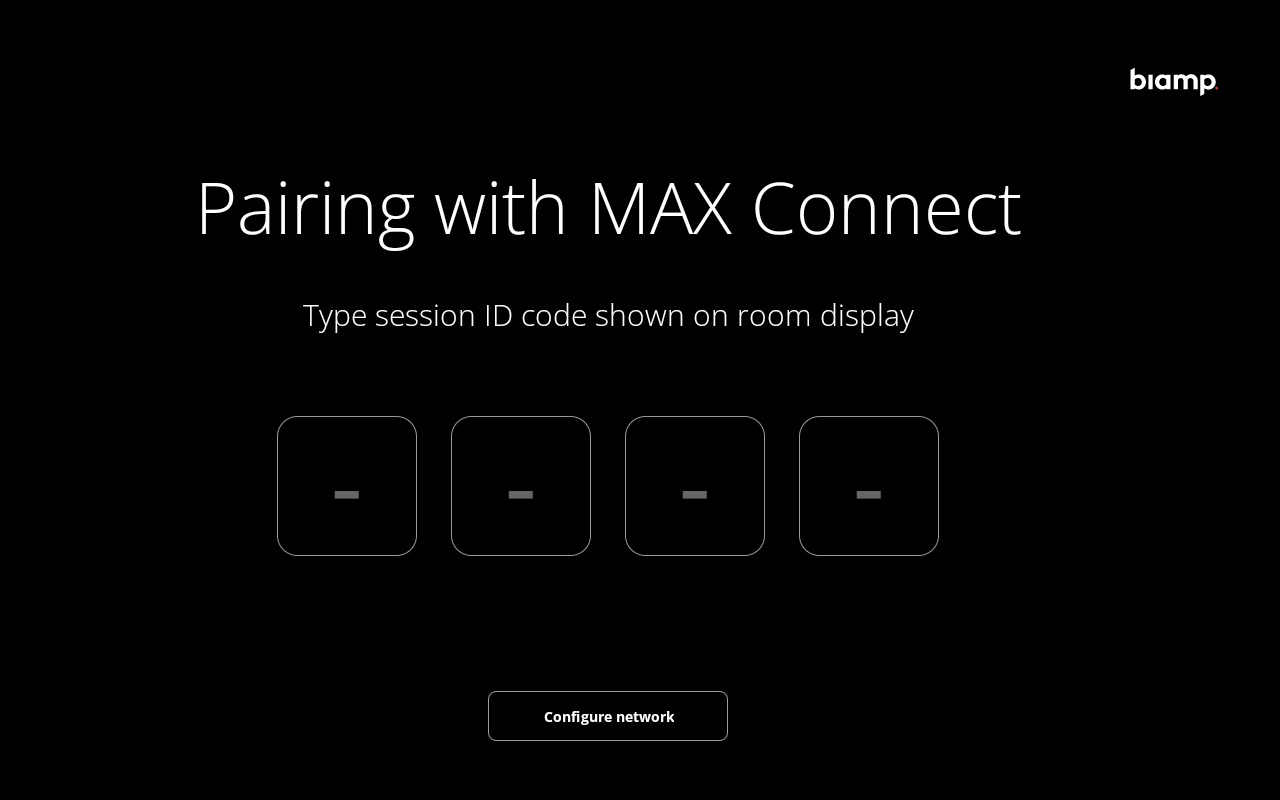
Once the Moderator app has been installed on the tablet, pair it to the MAX Connect in the room where it will be used to run meeting sessions.
Enter the session ID code on the app's Pairing Screen. The ID code can be found on the welcome screen of the room's MAX Connect display.
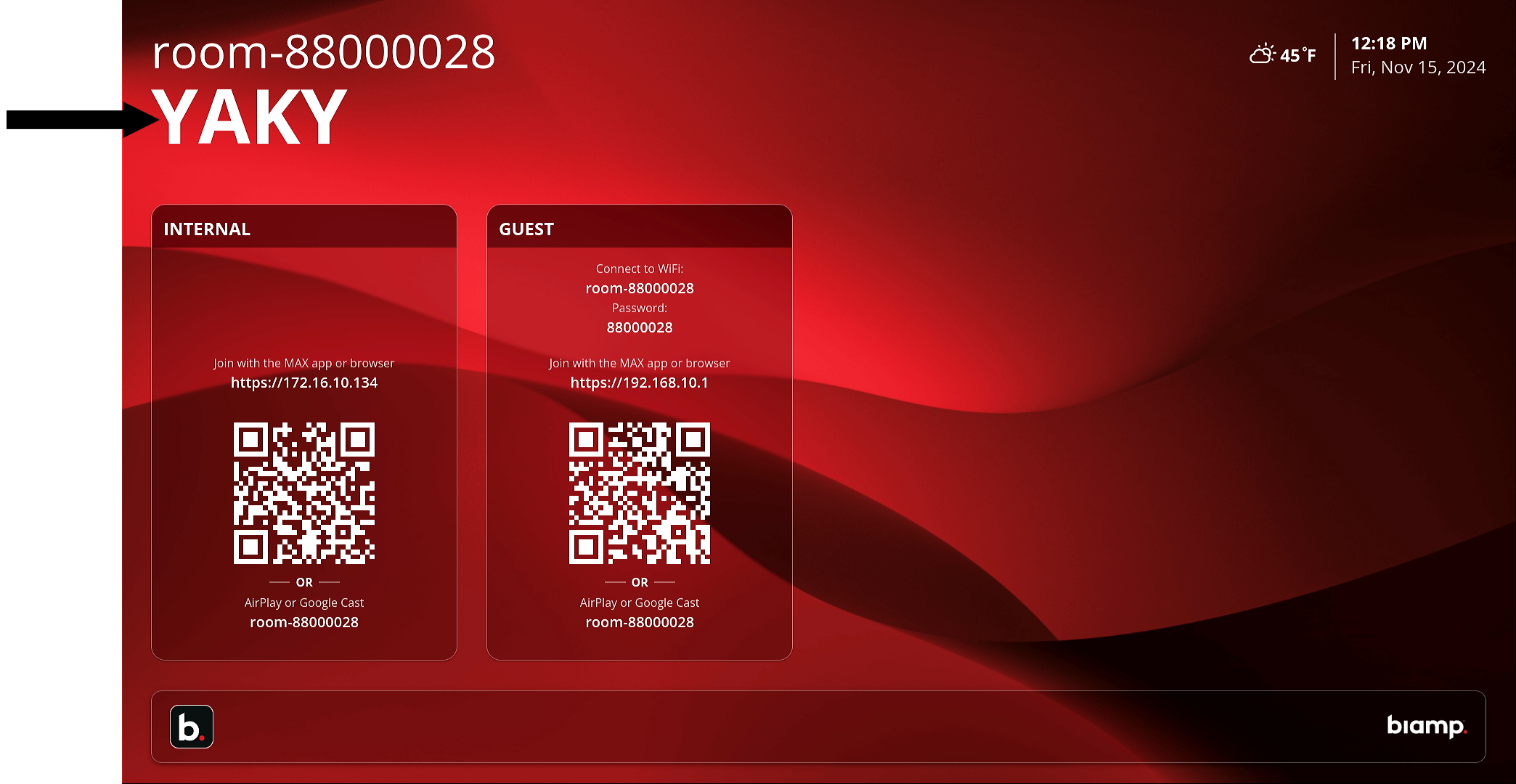
The MAX Connect room's home screen, displayed on the room's main monitor or screen.
- The session ID is found in the top-left side of the room display. In this example, "YAKY".
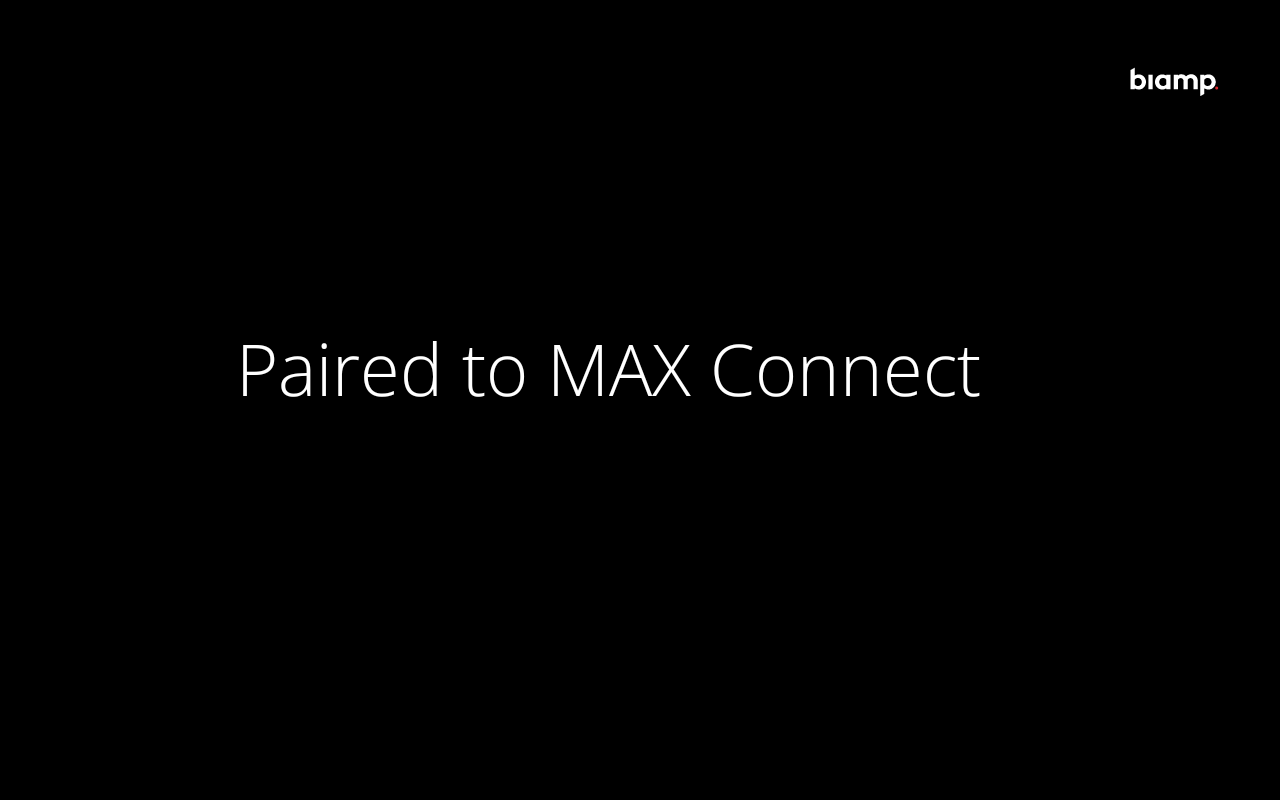
- A successful pairing brings up a confirmation screen.
User Interface Functions
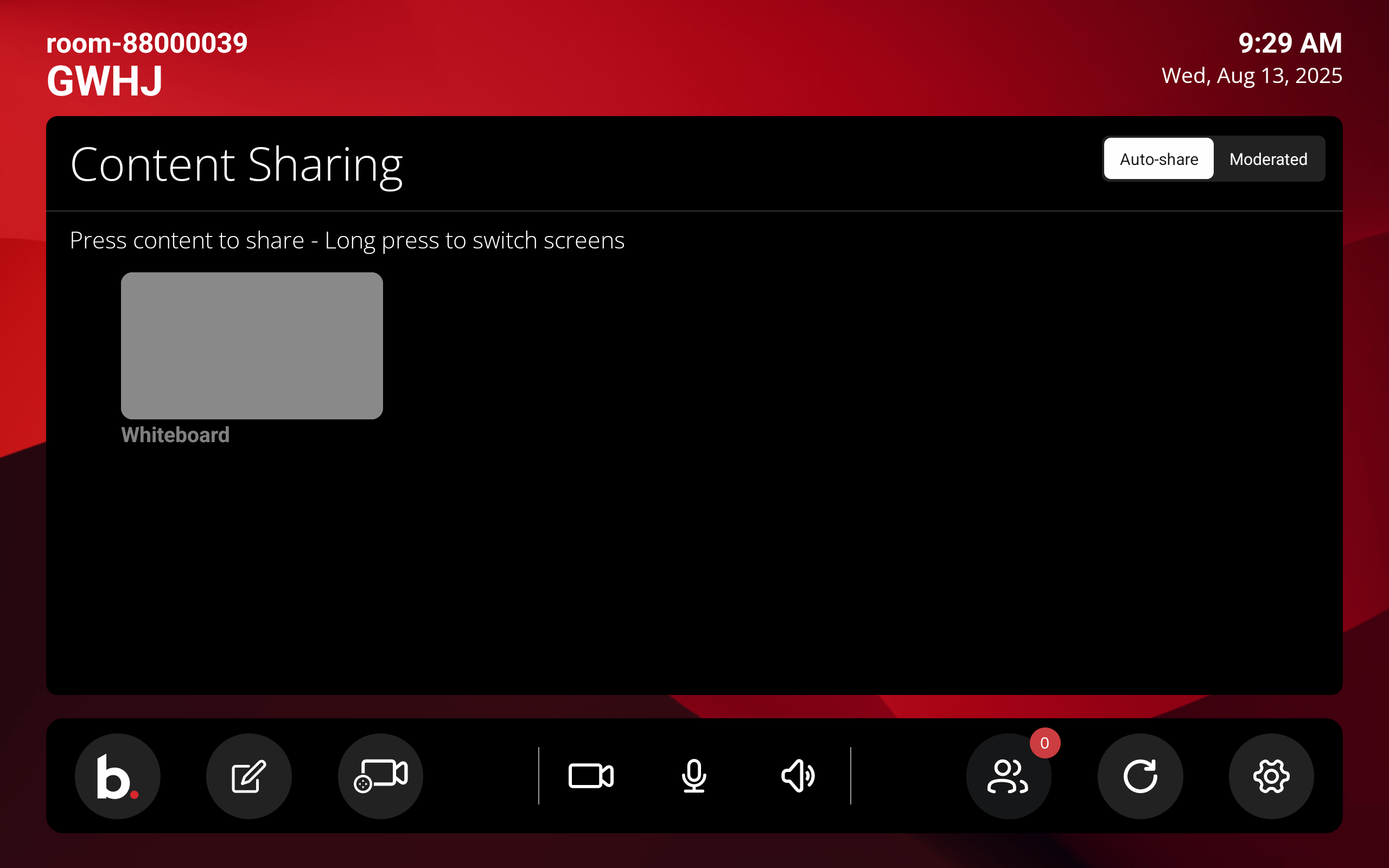
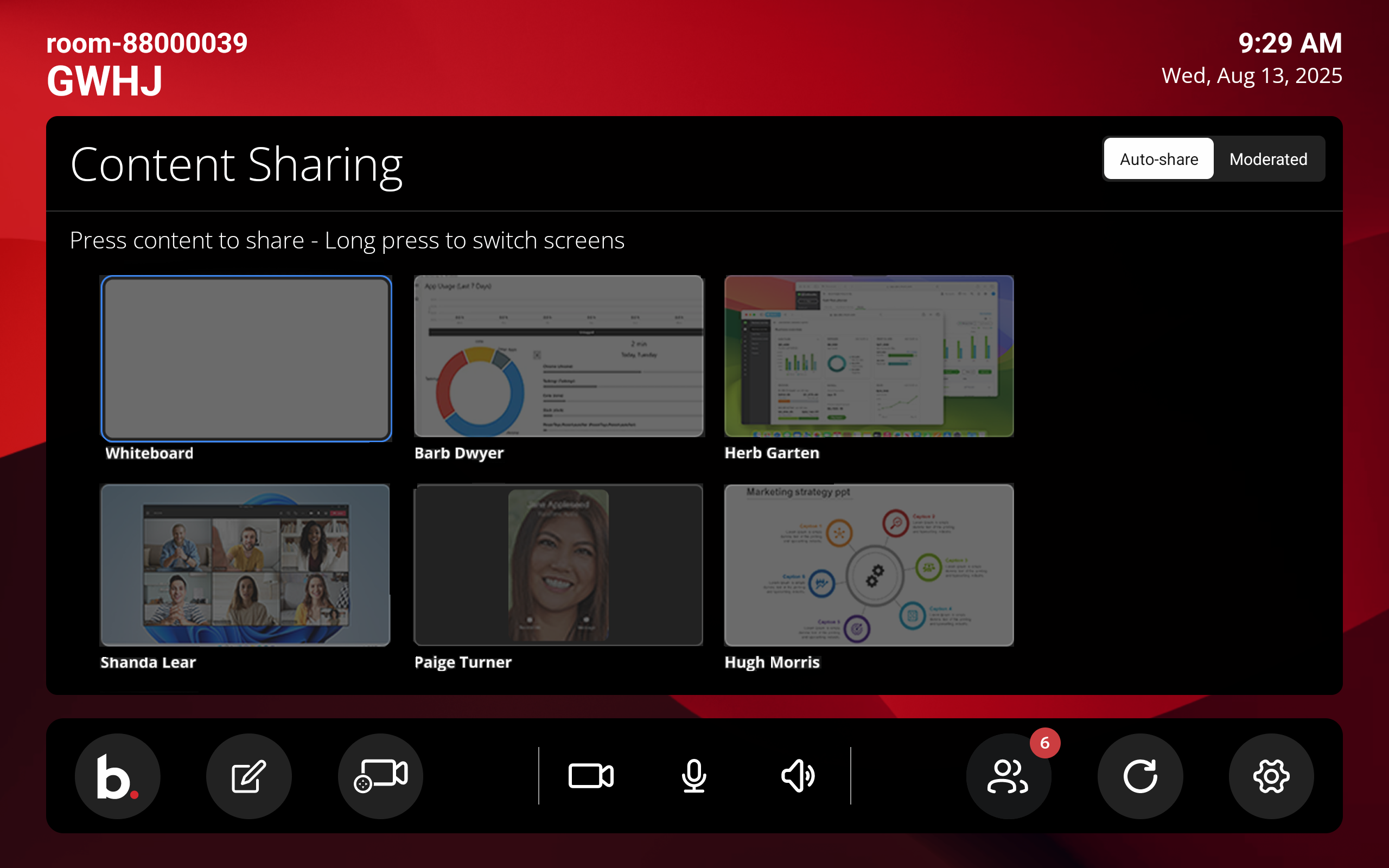
Once paired with the MAX Connect, the Moderator app will open to its home screen. The app's major functions and features can be found here, as well as options for accessing menus.
Home Screen Overview
The major home screen elements are:
- The Content Sharing panel — Controls which participant-shared content is visible on the room's main monitor and the screens of remote participants.
- The tool ribbon — The app's session controls and indicators are found in the ribbon near the bottom of the screen.
The Content Sharing Panel
The Moderation Mode Toggle
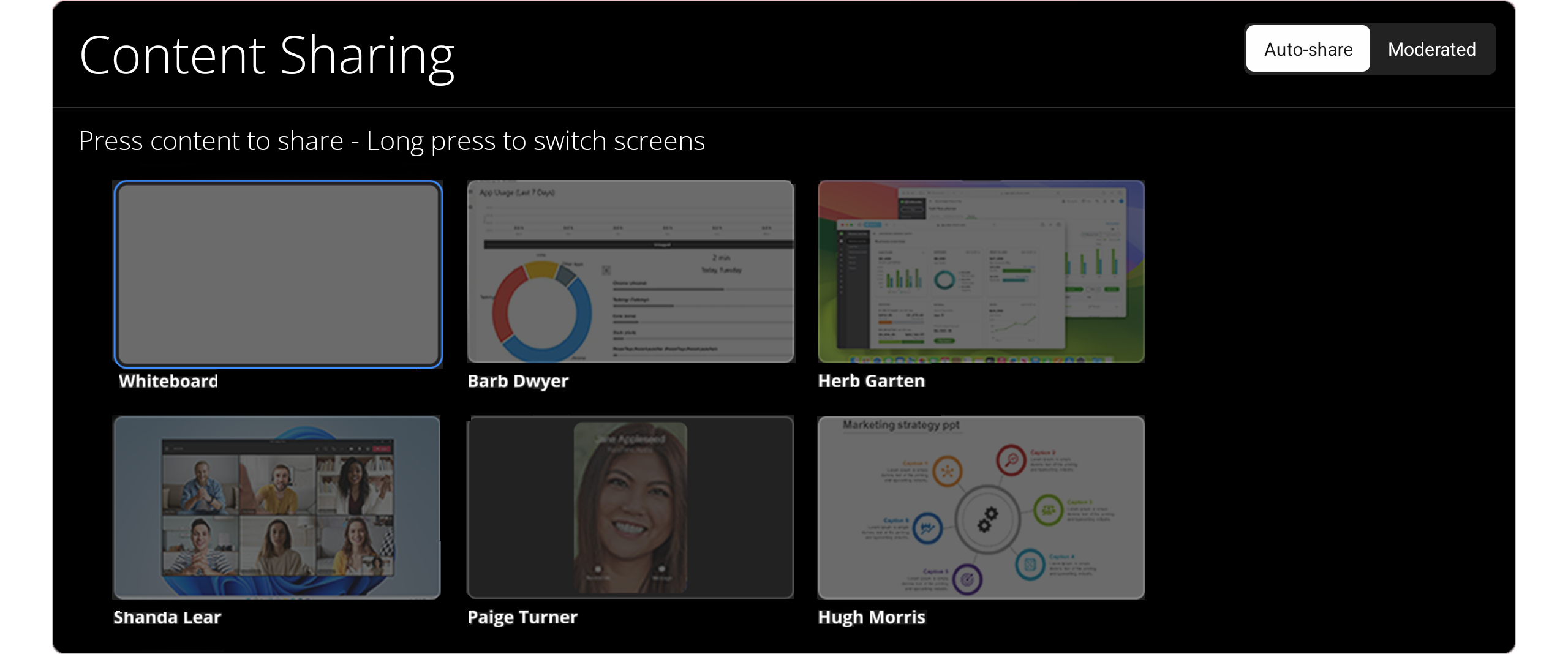
- Auto-share — When toggled to Auto-Share, screen content shared by session participants using the MAX App will automatically be visible on the room's display to other participants.
- Note: The Whiteboard will not automatically display in Auto-Share mode. It must be selected by the Moderator app user.
- Moderated — The Moderator app user must select participant-shared content on the Sharing panel to make it visible on the room display.
Sharing and Hiding Content
- Tap the Whiteboard or a participant's content on the Sharing panel to make it visible.
- Tap the Whiteboard or participant's content a second time to hide it.
Tool Ribbon Controls
The black ribbon near the bottom of the home screen contains the meeting controls, settings options, and status indicators.

- b. session information button
- Content annotation screen button
- Video settings screen button
- Video on / off button
- Microphone mute / unmute button
- Volume button
- Participants screen button
- Reset session screen button
- Settings screens button
1. The .b session information screen button
Tapping the .b button replaces the Content Sharing panel with the room connection information display.
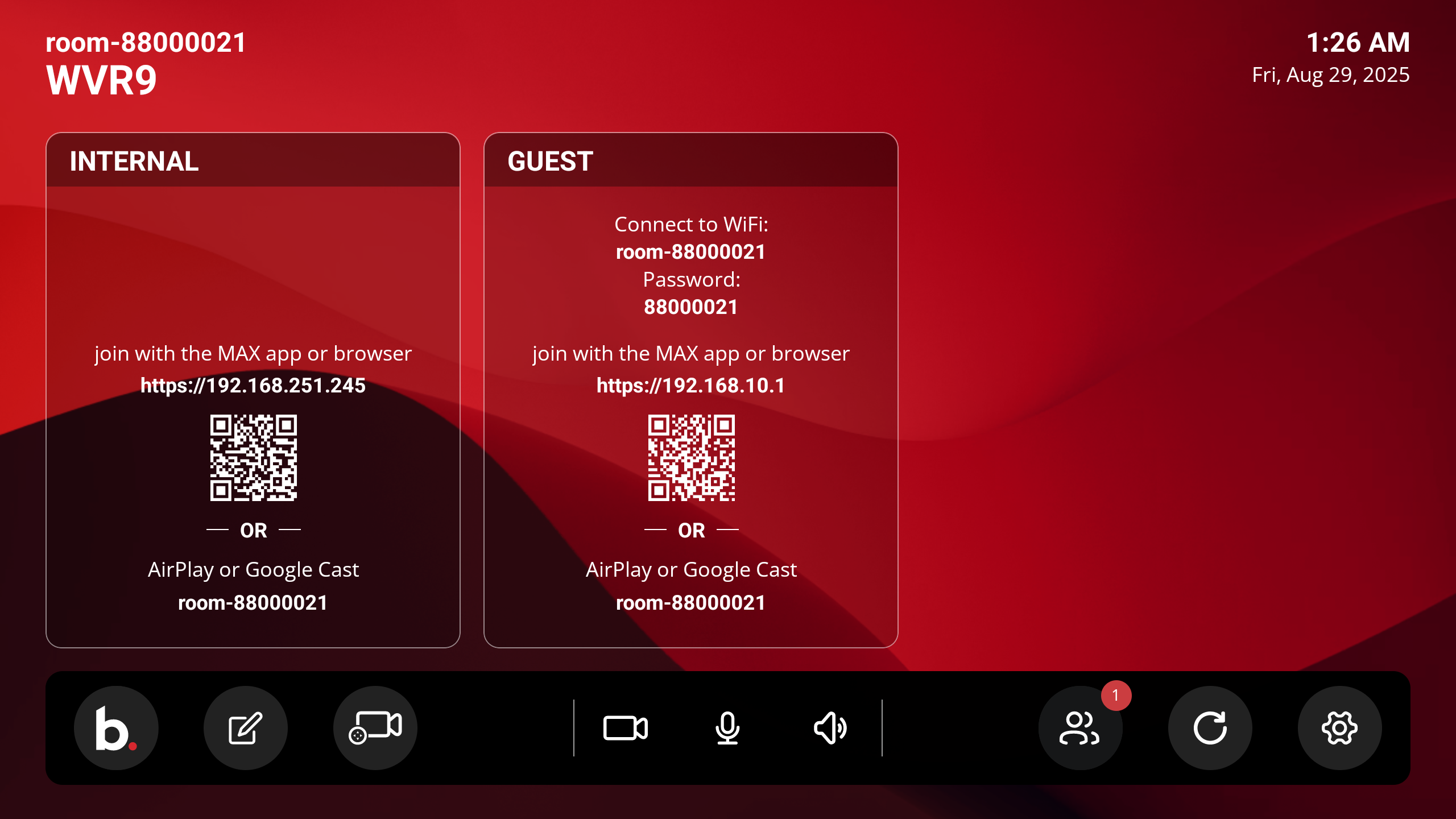
- Internal Connection information Panel
- Ethernet IP Address
- QR Code for connecting with a Biamp MAX mobile app.
- Room ID for connecting with AirPlay™ or Google Cast™.
- Guest Connection Panel
- Information for connecting to WiFi
- The SSID network identifier
- The network password (if enabled)
- WiFi IP Address
- QR Code for connecting with a MAX App.
- Room ID for connecting with AirPlay or Google Cast.
2. Content Annotation screen button
Tap the screen-and-pen button to annotate the whiteboard or currently shared content.
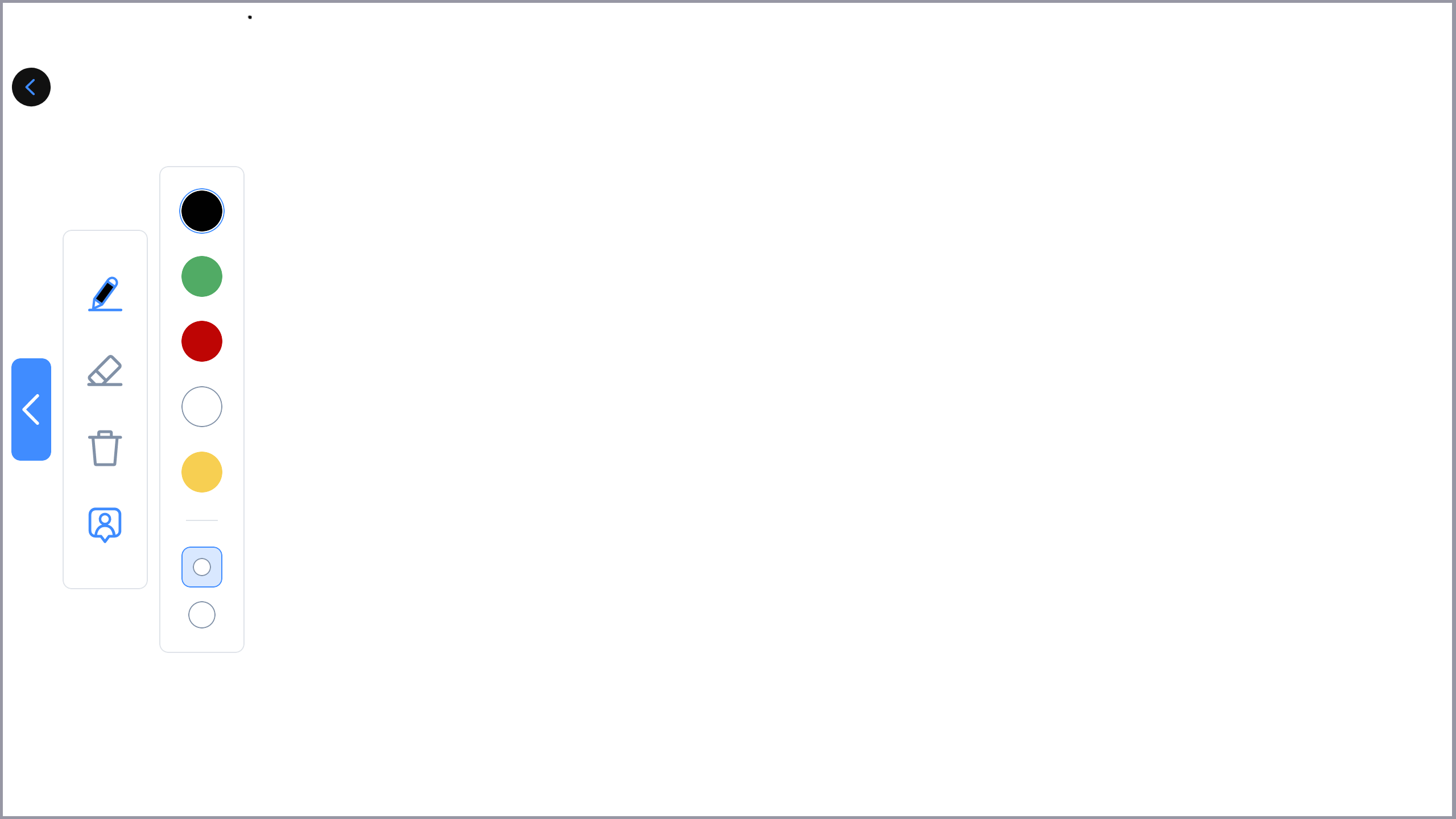
The whiteboard with the pen annotation tool and its options open.
3. Camera settings screen button
The hand-held camera button with a disc opens the Camera Settings menu.
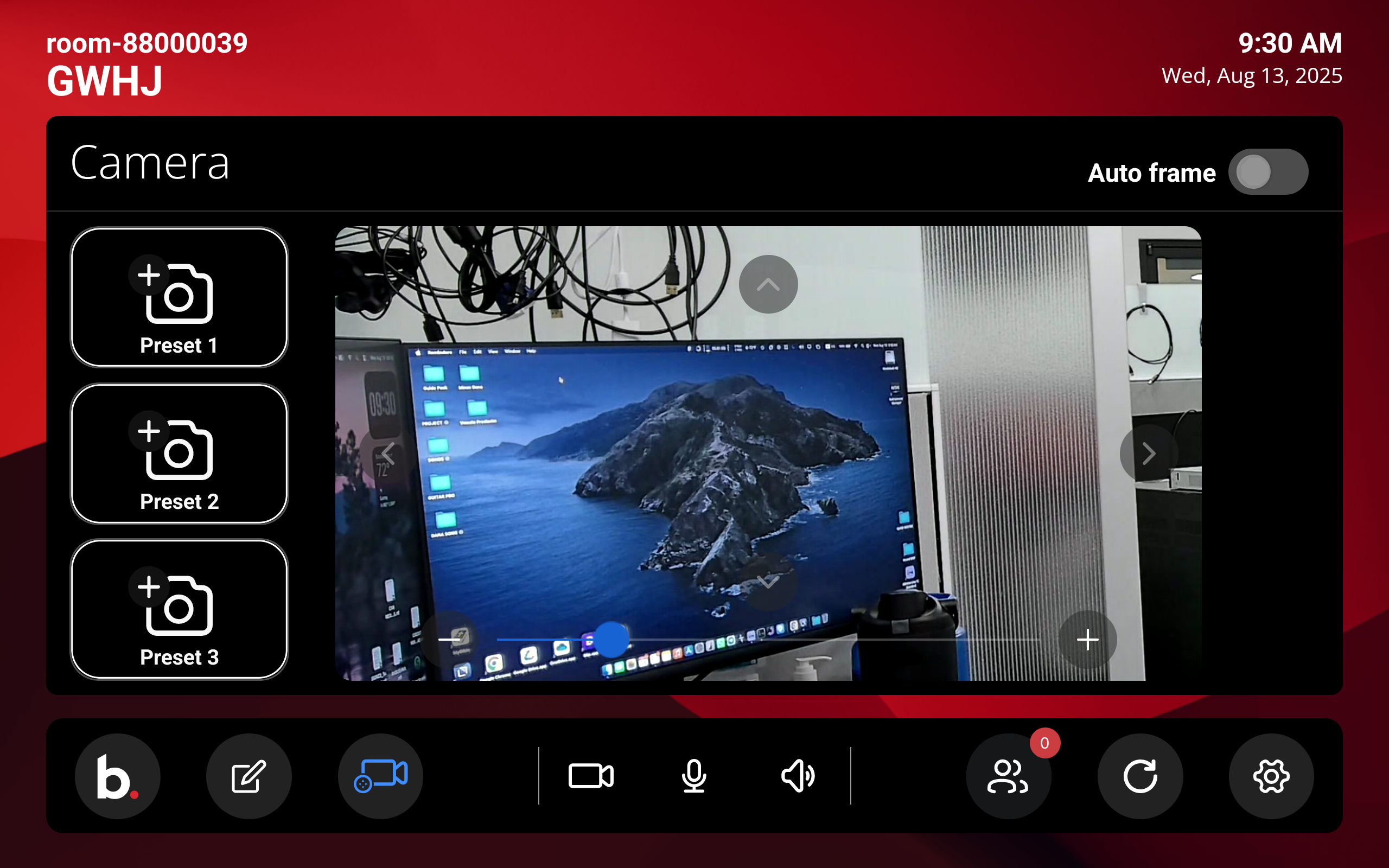
- The Auto frame camera focus can be toggled on and off on the Camera screen. Auto focus automatically focuses on the current speaker if an auto-focus-enabled camera is connected to the system.
- Preset static camera views can be selected here when the Auto frame is toggled off.
- To create a preset view, use the tilt bar in the video view at the center of the Camera panel to adjust the camera angle. Save the view by tapping one of the three Preset bubbles on the left side of the screen.
4. Camera on / off button
The hand-held video camera without a disc button turns the room's camera on and off.
- A compatible camera must be attached to the system to use this button.
5. Microphone on / off button
Selecting the microphone icon button mutes and unmutes the system's microphone.
- A compatible microphone must be connected to the system to use this button.
6. Volume button
Tapping the loudspeaker volume icon button brings up and then dismisses a volume slider control for the meeting room's speaker system.
7. Participants screen button
Displays the number of participants connected to the session. Tapping this button brings up a screen showing the participant's self-assigned screen names.
- Up to 30 participants may take part in a session.
- The Moderator App does not show as a participant.
8. Reset session button
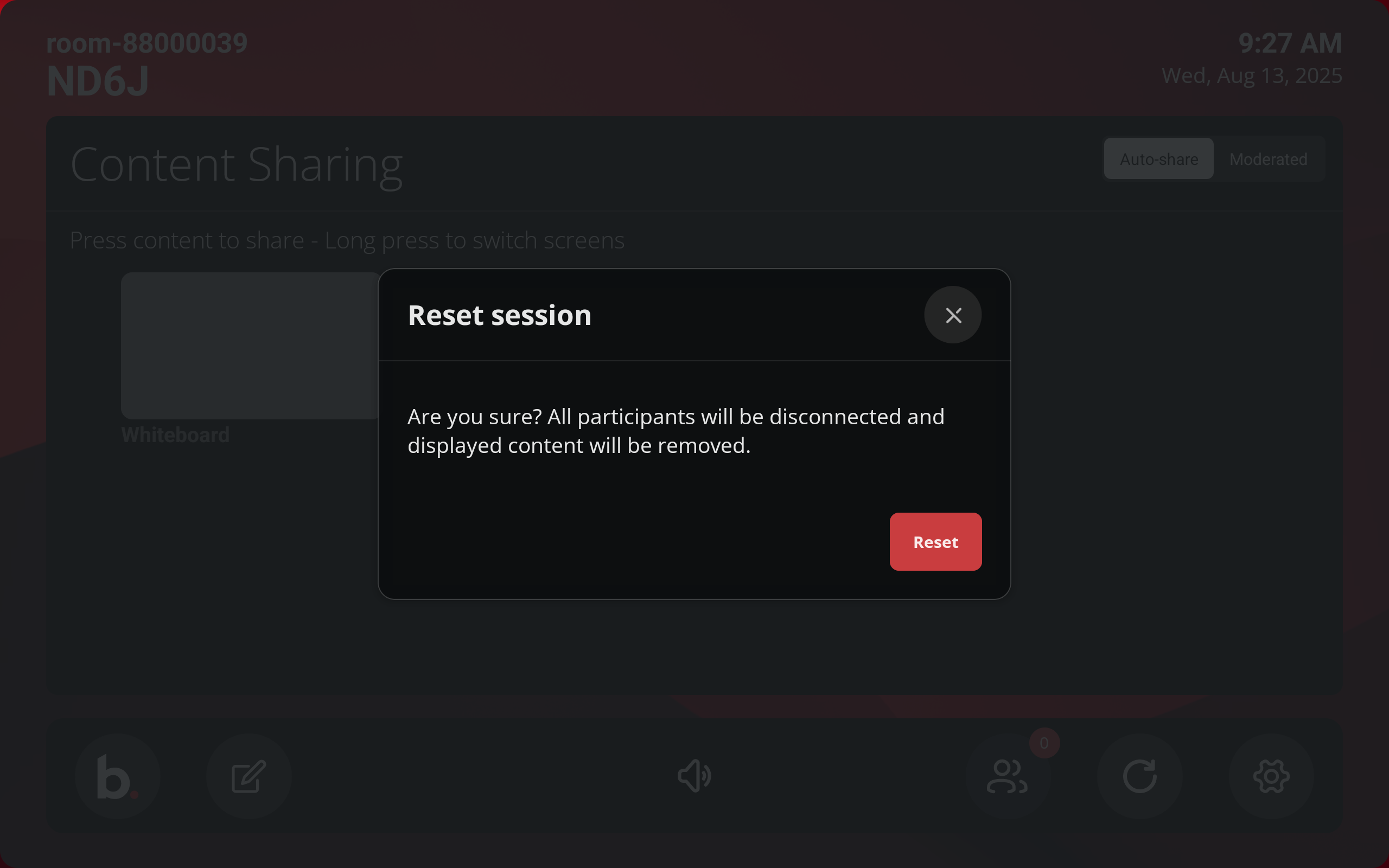
- Tapping the Reset button brings up a confirmation screen to end the current session.
- Ending a session automatically starts a new session.
- Ending a session automatically disconnects all the current participants.
9. Settings button
Tapping the cog settings button brings up the MAX Connect's settings pages.
Admin password: Accessing the Settings page requires entering the system's Administration password. Please see the Administration Console's Overview section in this help system for information on the admin password.
Room Settings
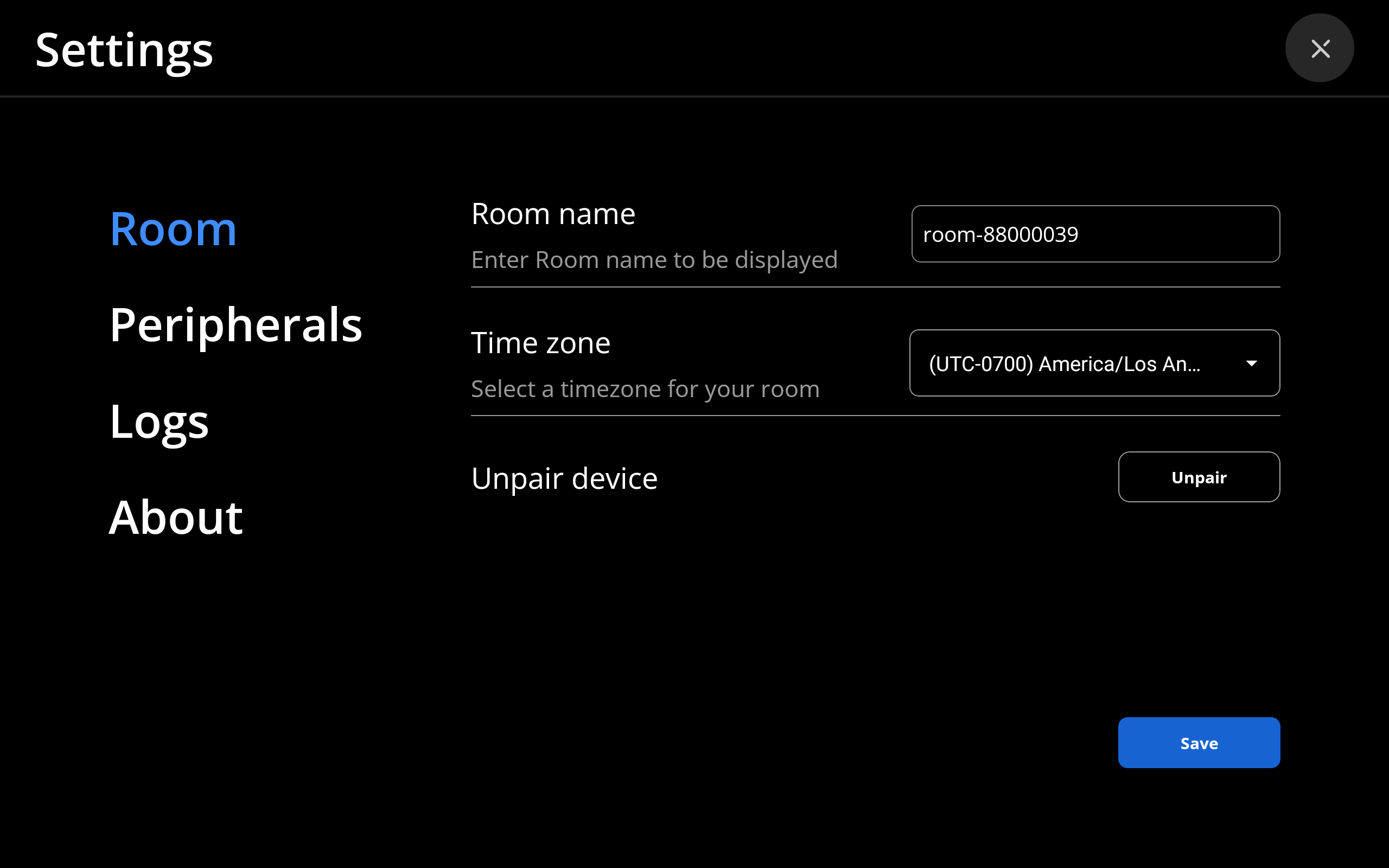
The Settings, Room page enables a user to:
- Enter a room name assigned to the MAX Connect. The room name will be displayed on the Room monitor and the Moderator App.
- Select a Time zone for the room.
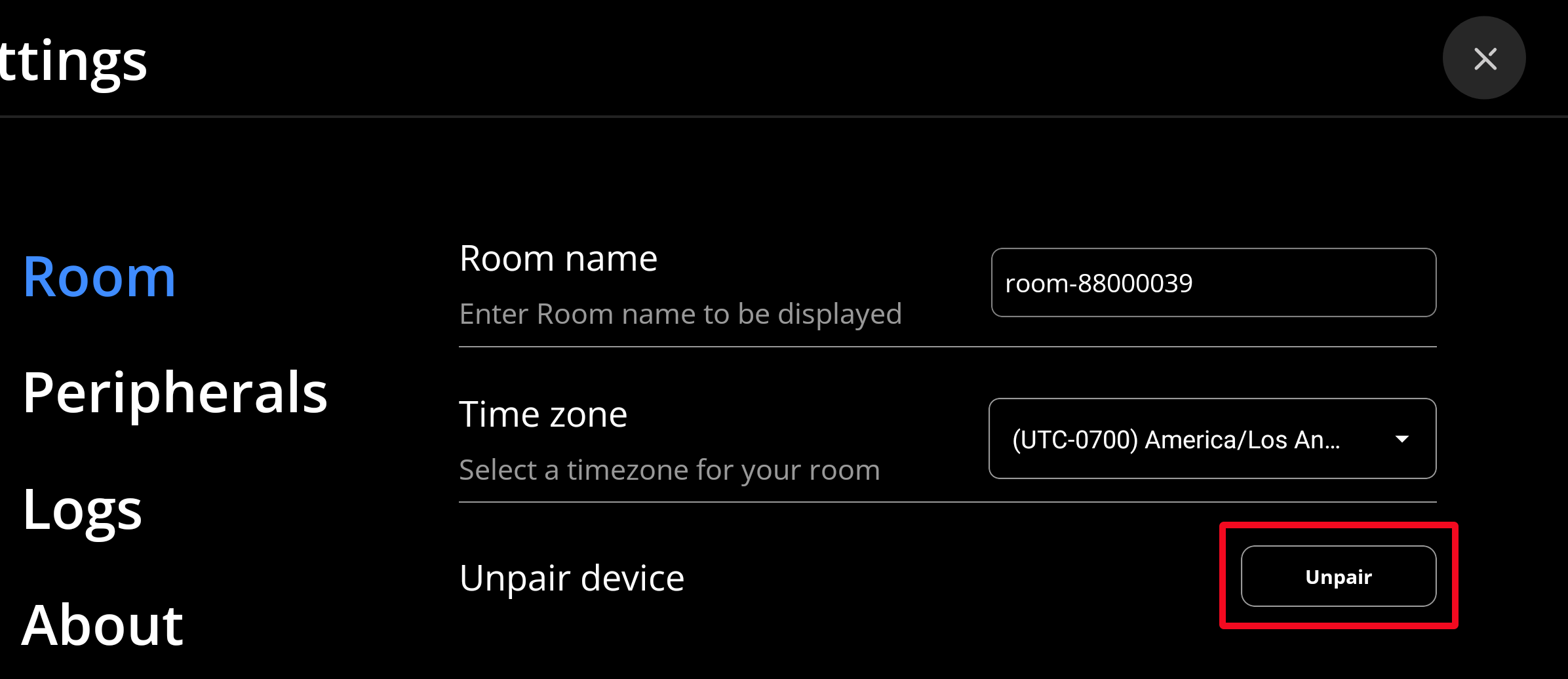
- Unpair the MAX Moderator App and its tablet from the room's MAX Connect.
Peripherals Settings
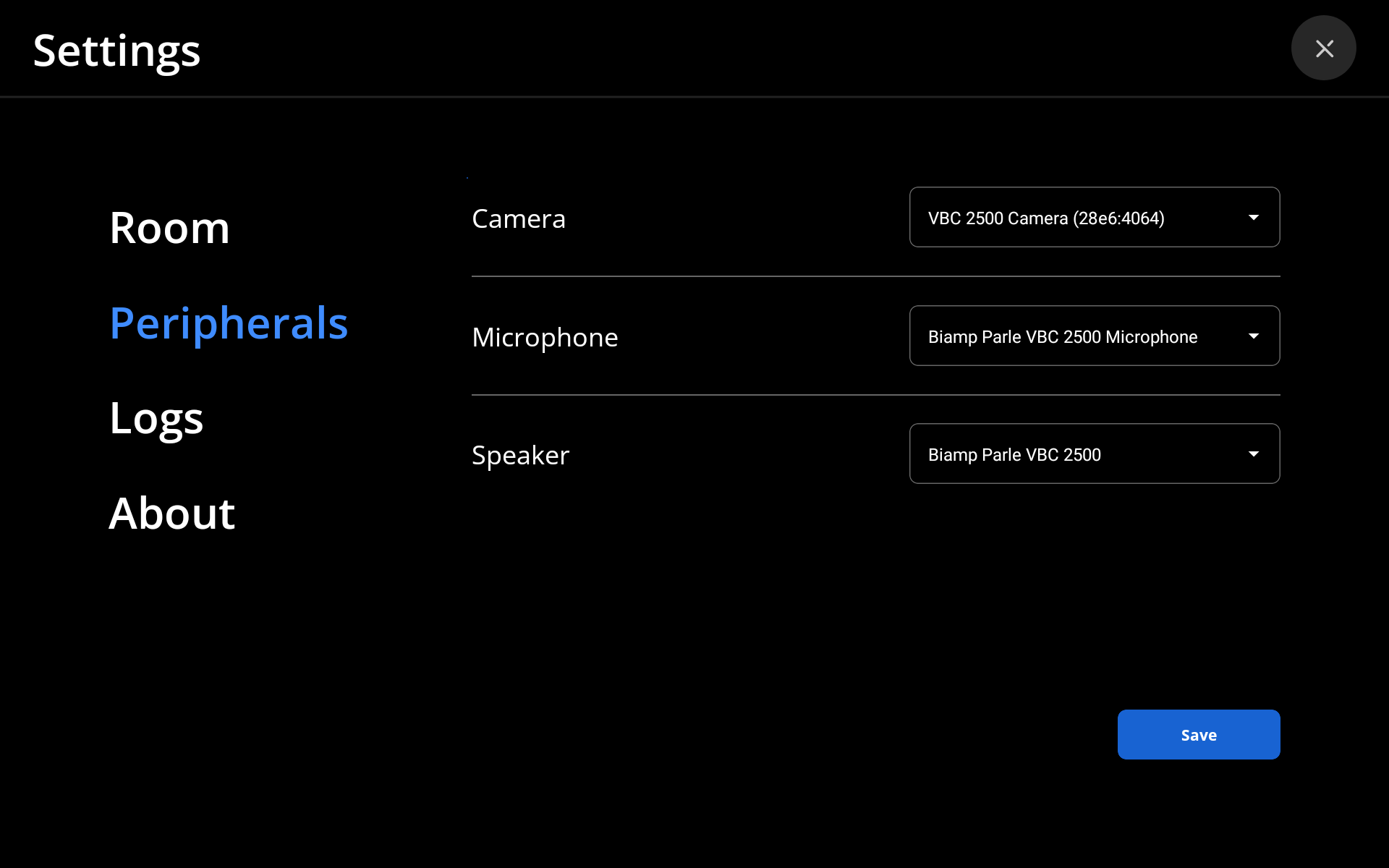
The Settings, Peripherals page offers dropdown menus for selecting and assigning detected AV devices to the MAX Connect system.
- Cameras
- Microphones
- This includes choosing to use the microphone of a mic-enabled web camera.
- Speaker
Settings Logs Page
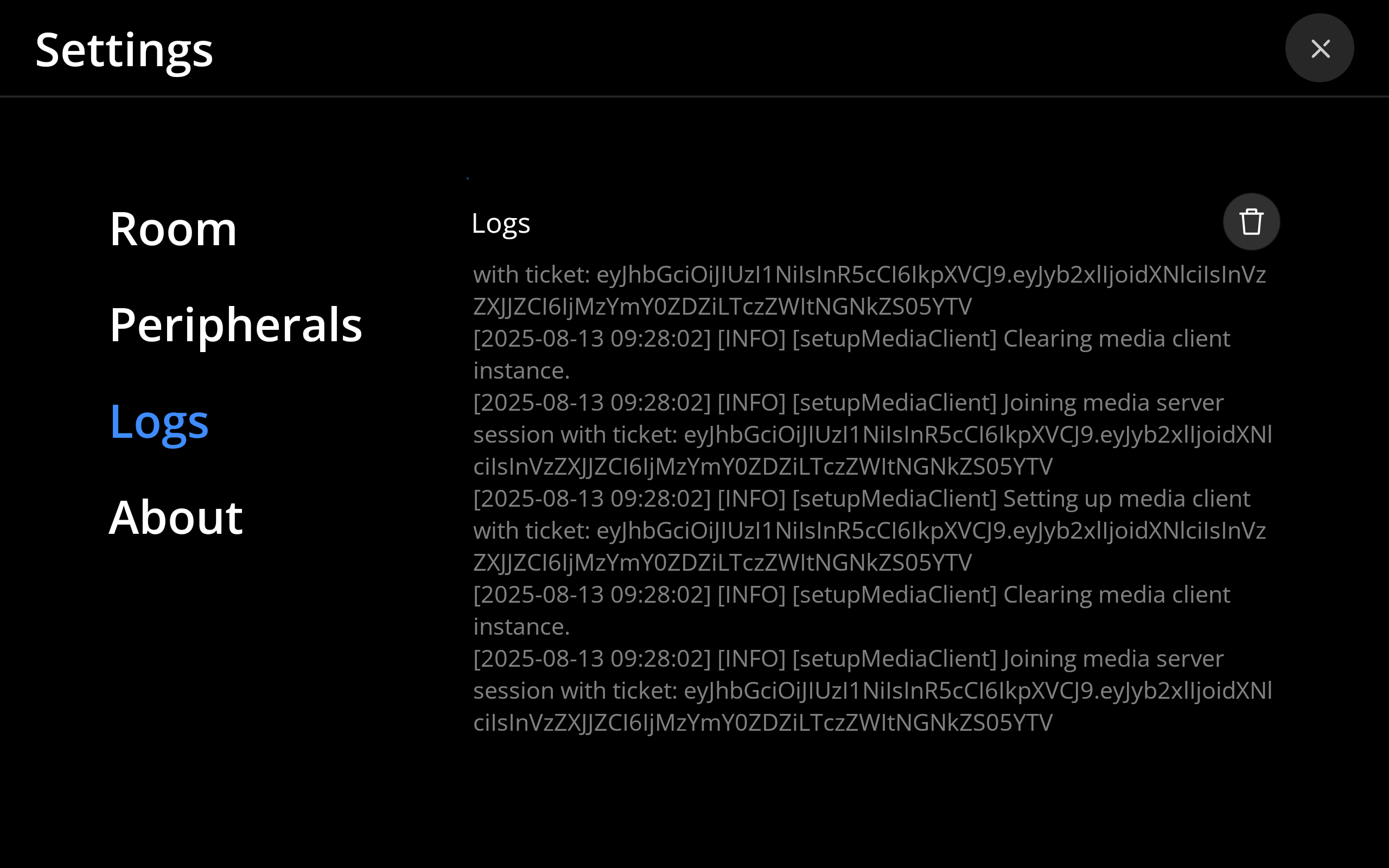
The Logs page shows a scrollable list with the dates, times, and information about instances and events.
About
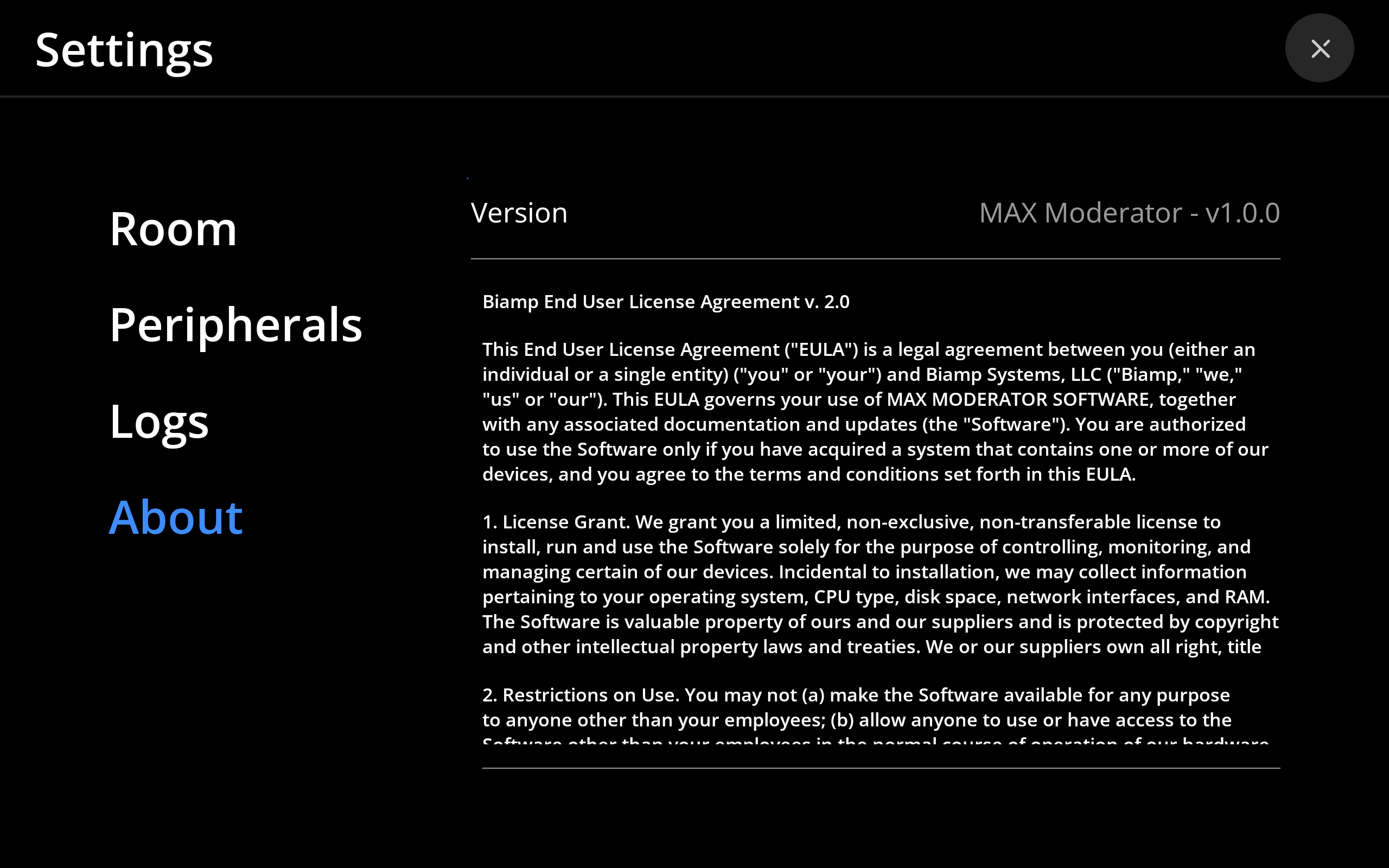
The about page shows the following information:
- The version of the Moderator app
- The Biamp EULA agreement for the app
Unpairing from the MAX Connect
Biamp recommends upairing the Moderator App before moving the tablet to another MAX Connect room.
To unpair the app:
1. Tap the Settings icon on the app's homescreen.
2. Enter the admin password.
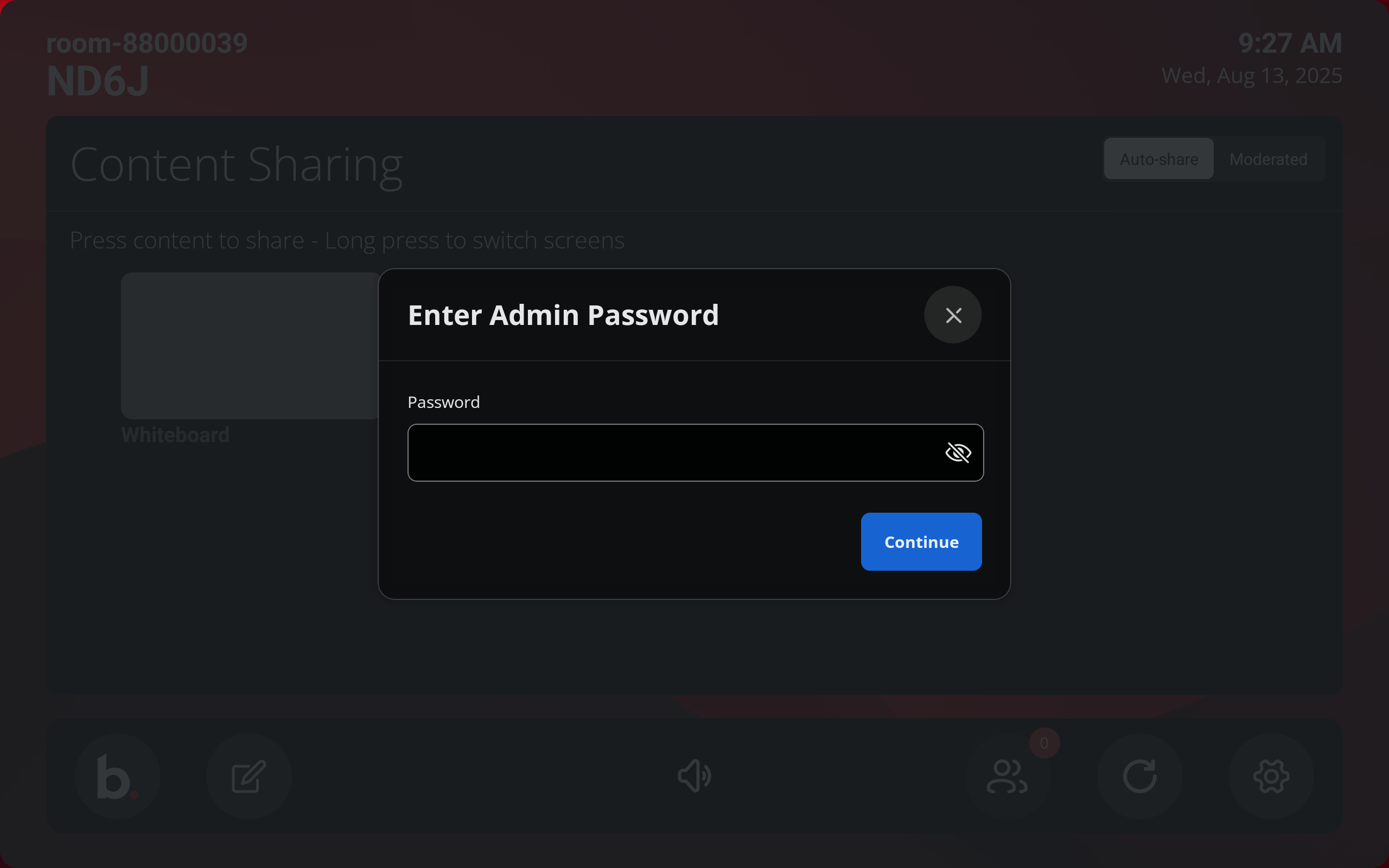
- Please see the Administration Console's Overview section in this help system for information on the admin password.
3. On the Settings Room page, tap the Unpair button.